

Advice and solutions
IPTV Not Working? A Guide to Errors, Empty Playlists and Buffering
Having trouble signing in, empty playlists or videos that stop playing? This practical guide helps you check credentials, the catalogue, connection and compatibility before contacting support.
In brief
- Identify whether the issue affects sign-in, the catalogue or playback.
- Check the URL and credentials while keeping the protocol you were given.
- Reload the playlist if channels, films and series all remain at zero.
- Compare content and connections to analyse buffering.
- Send support the exact message and the results of your tests.
In this guide
If your IPTV is not working, start from the moment the issue appears: you cannot sign in, you can sign in but find no content, or the video stops during playback. These situations require different checks. First verify the details you received, the service status, the connection on the device and app compatibility; change only one setting at a time.
This guide walks you through checks on Smart TVs, streaming devices, smartphones and computers. It helps you distinguish a sign-in error from a playlist that has not loaded, test the network meaningfully and prepare a complete support request. These steps apply to services and content you are authorised to access; menu names may vary depending on the installed player.
IPTV Not Working: Identify the Issue Before Changing Settings
Simply saying “IPTV is not working” does not show where to intervene. An app that rejects a password is a different issue from a player that opens the catalogue but shows a black screen. Before reinstalling everything, observe what still works and note the exact point where the process stops.
| What you see | First check | Next step |
|---|---|---|
| Error before sign-in | Sign-in format, URL and credentials | Restart the app and check the account status |
| Empty or expired playlist | Selected playlist and access validity | Refresh the playlist and wait for completion |
| Channels, films and series at zero | Active filters and catalogue loading | Reload content and reopen the player |
| Video stuck loading | Single item or general issue | Try another item and check the connection |
| Works on the phone but not on the TV | TV app, system and network | Compare usage conditions |
Also consider when the problem began. Is this the first setup? Did it appear after an update, a router change or service renewal? A recent change does not prove the cause, but it helps you choose the next check instead of making random attempts.
IPTV Connection Error on First Sign-In: URL and Credentials
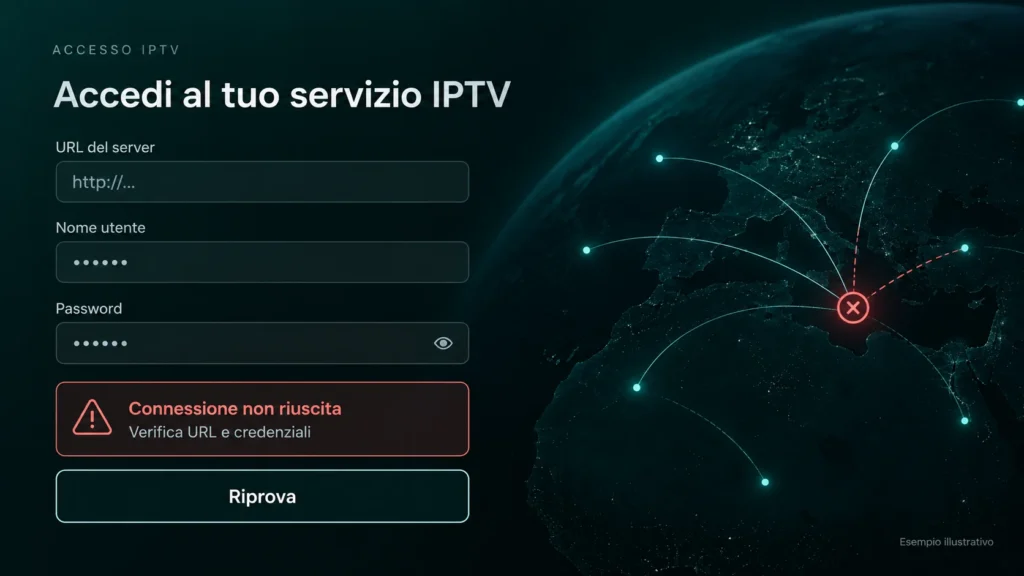
If IPTV is not working on the first sign-in, start with the details entered. Before assuming the device is faulty, make sure you selected the method required by your service in the app. A complete M3U link and an Xtream Codes server address are not automatically entered in the same field.
Xtream Codes Sign-In: Check the Three Fields Separately
When the player and service use Xtream Codes, check the server URL, username and password in their respective fields. Copy them from the original message, paying attention to leading or trailing spaces added during copy and paste.
Also check upper- and lower-case letters, numbers that look like letters and any port in the address. If you use a remote control, check the result before saving: one different character can make a correct detail unusable. Do not add parts of the address found in a generic guide.
M3U Link Not Working: Check That It Is Complete
If you use an M3U playlist, enter the complete link in the dedicated field. Check that the message you copied it from has not split the link or added punctuation. Do not remove final parameters because they look long or unclear: they may be needed for access.
The link may contain personal authentication details. Do not paste it into public checking tools or comments on a guide. If you are unsure which part to use, ask support to confirm the format required by your app instead of trying improvised conversions.
HTTP or HTTPS: Keep the Protocol You Were Given
There is no rule that every IPTV address must begin with HTTP. If the service gives you a URL with http://, do not change it to https:// on your own; if it provides HTTPS, do not remove the “s”. Keep any port as well, and ask for confirmation when the details you received are unclear.
Protocol, domain, port and path are separate parts of an address: the MDN explanation of URL structure helps identify them. When configuring the player, the practical rule is to copy the details in the requested format rather than rewriting them by guesswork.
After correcting a detail, save it, fully close the player and reopen it. If the same error appears, note it before making other changes. Repeating the sign-in many times without changing anything adds no useful information: the next step is to check account validity and service reachability with support.
Empty or Expired IPTV Playlist: What the Message Means
A message such as “Empty or expired playlist” describes a loading issue, but it does not necessarily identify a single cause. It does not by itself prove that your subscription has expired: you need to check the details, the selected playlist and access status. Read the full message and see whether the app adds an error code.
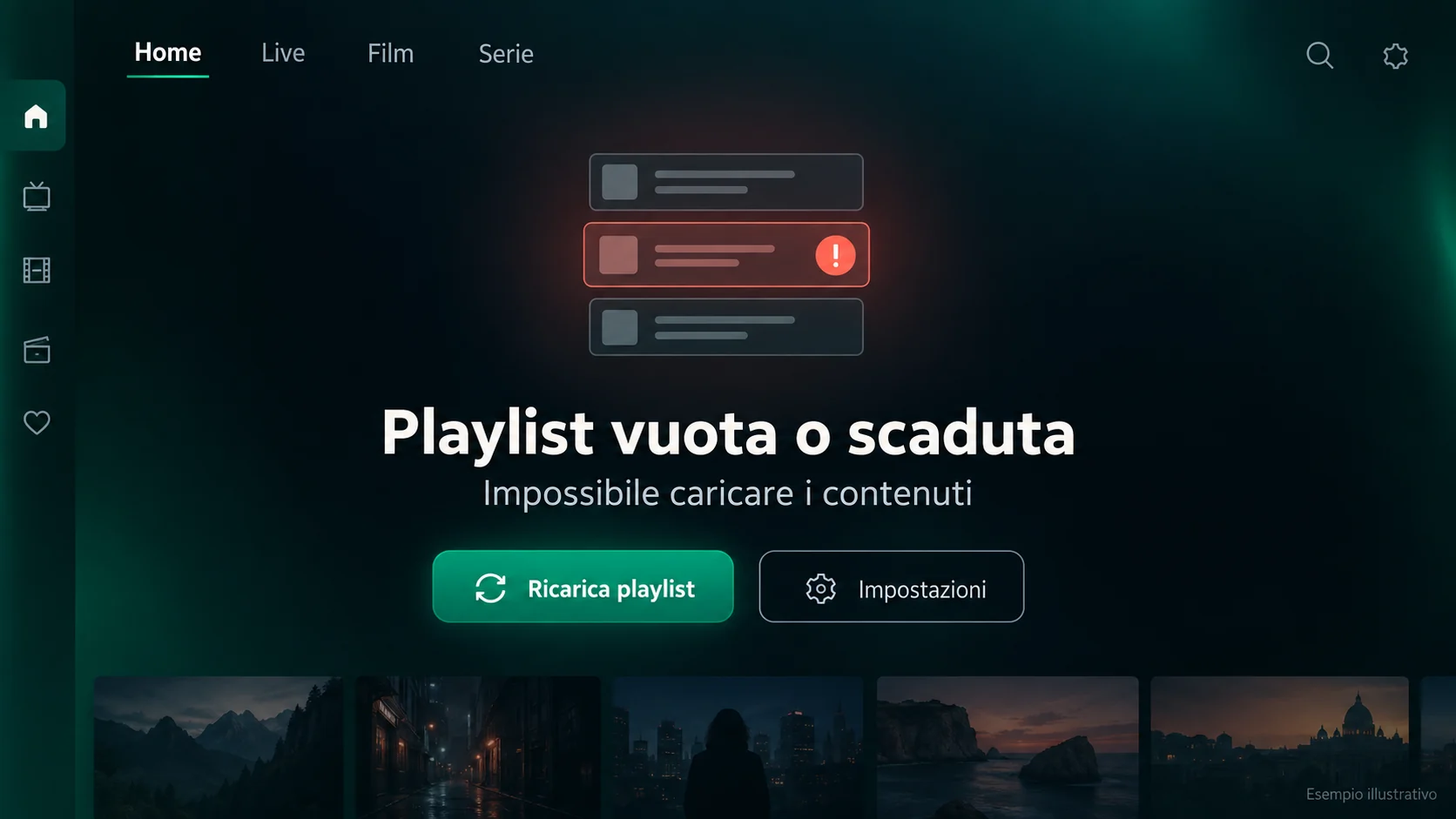
A playlist message calls for a loading and access check, not an automatic renewal.
If you have set up more than one profile, make sure you opened the correct one. An old trial playlist may remain stored alongside your current access. Check the profile name and the date of the details you are using without immediately deleting every saved configuration.
How to Reload an IPTV Playlist
Open the playlist menu and look for a feature such as “Update”, “Reload” or “Refresh”, depending on the app. Start it once and wait for it to finish. If you see a progress indicator, let loading complete before moving to other sections.
When the update has finished, close and reopen the player, then check the catalogue again. If the message remains, ask the provider to confirm that access is active and that the associated playlist is correct. Before deleting a profile, make sure you can retrieve the details needed to configure it again.
IPTV Channels at Zero: Why Films and Series Do Not Load
If IPTV is not working after sign-in, check the catalogue: entering the interface does not mean it was imported correctly. You may see the Live, Films and Series menus but find counters at zero. In this case, focus on content loading and filters before changing video settings.
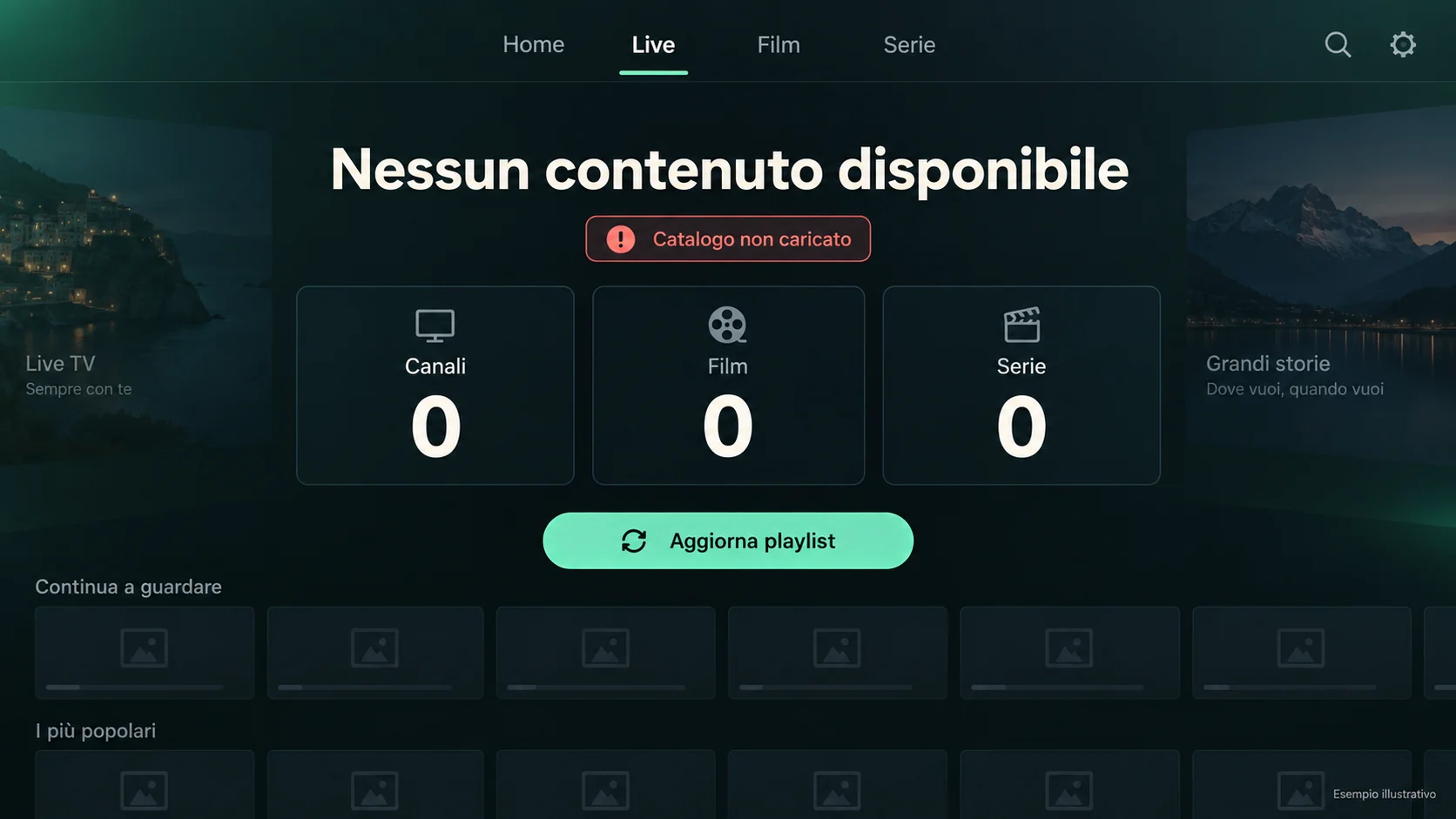
Zero counters in the different sections: an example of a catalogue that has not loaded.
Check Filters, Favourites and Categories
Check whether you are viewing “All” or only “Favourites”, a saved search or a specific category. An empty Favourites section does not mean that all channels are missing. Clear any search and return to the full list before refreshing the playlist again.
Check whether the issue affects only one section or all counters. If Live contains items but Films and Series are empty, report that difference to support. It is more useful than saying “I cannot see anything” and helps them check what should be available with your access.
An Empty Catalogue and One Unavailable Channel Are Different Problems
If the list is present but one channel will not start, the catalogue is not empty: the issue concerns playback of that item or group of items. Try another item and note the result. Do not repeat the full playlist import every time just one item fails to open.
If IPTV is not working and every counter remains at zero after updating and restarting, send a screenshot to support. Specify which playlist you selected and whether loading finishes or remains stuck. Hide complete URLs, usernames and other personal identifiers before sharing the image.
IPTV Keeps Buffering: How to Analyse Interruptions
Buffering occurs when playback must wait for more data: you may see a spinner, a pause or a loading message. The symptom alone does not prove that the home network is the cause. To understand where to intervene, compare different items and repeat a test while changing only one condition.
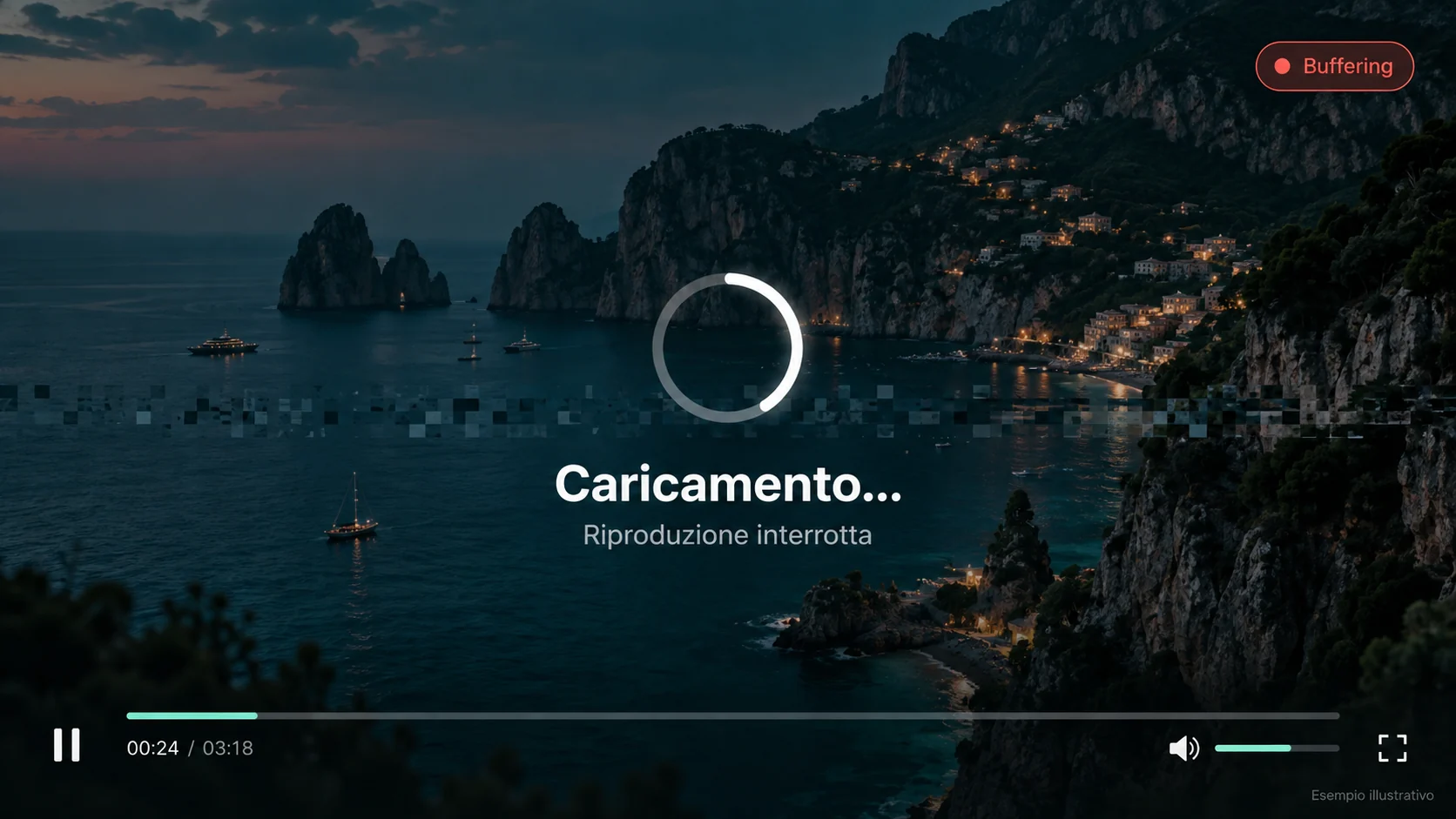
Illustrative example of interrupted playback. The screen alone does not identify the cause of buffering.
Does IPTV Buffer on One Item or All of Them?
Try a second available item and see whether playback starts. If the issue concerns only one item, note its name and the time of the test. If it affects all content, move on to checking the network and device. This distinction prevents you from changing general settings for a limited anomaly.
Also check whether the interruption appears immediately or after a few minutes. An immediate black screen, audio without video and repeated pauses are not necessarily the same issue. Describing the exact behaviour helps support check the content format and the player being used.
Check the Connection on the Device You Use
A test run on a phone next to the router does not automatically represent the TV connection in another room. Where possible, check the network on the affected device or compare conditions closest to real use. During the test, pause major downloads and other avoidable transfers.
You can temporarily try a lower quality, if the service offers it, and see whether interruptions change. This comparison is a clue, not a definitive diagnosis. The official YouTube guide to video errors also suggests checking the connection and resolution when playback has problems.
How Many Mbps Do You Need for Streaming?
Speed is normally measured in Mbps, megabits per second, not megabytes. There is no single threshold that guarantees any IPTV stream will work: video quality, service requirements, stability and simultaneous connection use all matter.
As a reference for one specific service, Netflix recommends at least 3 Mbps for 720p HD, 5 Mbps for 1080p Full HD and 15 Mbps for UHD 4K. These values are not universal IPTV requirements. They show why you should check the desired quality and your service’s guidance rather than treating “10 megabits” as a guarantee.
Restart the App and Device Correctly
Close the player and reopen it. If nothing changes, restart the device from its menu: putting the TV into standby may not be the same as restarting it. On Google TV devices, restarting is part of the checks described in the official troubleshooting process.
Warning: Before a Factory Reset
Do not confuse restarting with a factory reset. A factory reset can remove configurations and accounts and should not be your first step. Before taking an action that erases data, make sure you have the necessary information and a specific reason to do it.
IPTV Not Working on Wi‑Fi: Try Ethernet or Mobile Data
When IPTV is not working on Wi‑Fi, comparing another connection can help narrow down the issue. If your device allows it, try Ethernet. Alternatively, use a 4G or 5G hotspot for a short test, checking data consumption and the service conditions.
Practical tip: one test at a time
Keep the same app, access and content. If you change the device, app and network at the same time, it becomes difficult to interpret the result. Also close other sessions when the subscription does not allow multiple simultaneous streams.
If the content works on mobile data but not on Wi‑Fi, you have identified a difference between the two conditions; you have not yet proved that the provider is blocking it. Router, wireless coverage, routing or other factors may need checking. Report the comparison to support and state exactly how you performed it.
If the issue occurs on both networks, avoid focusing every test on Wi‑Fi. Go back to checking the app, account and affected content. Comparing networks is useful because it helps you choose the next step, not because it solves every case.
IPTV Not Working on a Smart TV: Check the App and Compatibility
If IPTV is not working on your TV, the TV’s brand name alone is not enough to identify compatibility. You need the model, operating system and app version. Before installing another player, consult the dedicated page on IPTV compatibility of apps and devices and compare those details with your device.
Samsung and LG: Check the Exact Model
For a Samsung or LG TV, check which apps are actually available in that model’s store. If you are considering SmartOne or another player, confirm availability, requirements and conditions before buying a licence. An app used on another television is not automatically suitable for yours.
If the app was already installed, note its version and check whether the issue began after an update. Do not immediately buy a second player just because an error appears: first distinguish a catalogue issue from a difficulty with the app or service.
Android TV, Google TV and Fire TV: Identify the System and Publisher
On Android TV and Google TV, check the player’s full name and publisher, especially when you find apps with similar names. If support has advised IBO Player, IBO Player Pro, HotPlayer or Vu Player, ask them to confirm the version intended for your device. The name alone does not define every compatibility condition.
On Fire TV, check the model and system in the same way, without assuming that every procedure found online applies. For installation, use the official sources provided by the manufacturer. Avoid replacing a diagnosis with a series of downloaded apps without checking their origin and requirements.
If the App Closes or Freezes
A player that closes on its own requires different checks from an empty playlist. Check official app and system updates, then try again. For Google TV, you can follow the official guidance for apps that stopand adapt the steps to the available menus.
If you are advised to clear the cache, distinguish this function from “Clear data”. Do not press both without knowing what will be removed. If the player loses its configuration or access, you may need to re-enter the details: prepare them before any action that removes them.
IPTV Subscription, App Licence and Simultaneous Connections
Good to know: app and subscription
The player licence and access to content are separate checks. An activated app does not prove that the associated service is still valid; likewise, active access does not rule out an activation request from the player. Read which component displays the alert before making a payment.
Check the confirmation you received, the access duration and the conditions that apply to your account. If you have just renewed, ask support whether you need to refresh the playlist or use different details. To understand the plans offered on the site, you can consult the IPTV subscription plans, while the status of the individual account must be checked directly.
Also check how many simultaneous connections are permitted. During a test, stop playback on other devices before reopening content on the TV. Noting whether the issue appears only when you use two screens helps support compare the behaviour with the access conditions.
VPN and DNS: What to Check Without Changing Everything
If you use a VPN and the issue began after enabling it, first check that the service allows its use. Where appropriate, briefly compare playback without the VPN on your normal connection. The aim is to understand whether that configuration affects the test, not to bypass restrictions or keep changing countries.
Do not treat DNS as a command that makes every video faster. As Cloudflare explains in its DNS guide, DNS translates domain names into IP addresses; changing it does not guarantee that buffering or server issues will disappear. If support suggests a test, ask which settings to change and keep the original ones so you can restore them.
A connection problem can have several explanations. Record the result of each test and do not combine VPN, DNS, app and router changes in the same test. Otherwise, even if the video starts again, you will not know which change made the difference.
When to Contact IPTV Support and What Information to Send
If IPTV is not working after the essential checks, a detailed request is more useful than a series of reinstalls. Contact support also when the error concerns account validity, the details received or a specific item you cannot check independently.
Prepare this information: device model, operating system, app name and version, the exact message, when it appears and the scope of the issue. Add whether it affects all content or only some, and which tests you have already performed. You do not need to share the password to describe the symptom.
A Message Ready to Send to Support
Hello, I am experiencing an issue during [sign-in / catalogue loading / playback]. The device is [model], with system [version] and app [name and version]. The message displayed is “[exact text]”. The issue started [date and time] and affects [all content / a specific section or item]. I have already tried [actions] with this result: [outcome]. I use [Wi‑Fi / Ethernet / mobile data]. I am attaching a screenshot with personal information hidden.
To request help, use the IPTV Italia support contacts. If you send a photo, make the message readable and hide credentials, personal URLs and identifiers. A short video can help show an app closing unexpectedly or a recurring interruption, provided it does not expose sensitive information.
Mistakes to Avoid During Troubleshooting
When IPTV is not working, do not change the player, password and connection at the same time. Do not buy a new subscription just because an empty screen appears. Do not delete all playlists without having the details needed to retrieve them. These actions can introduce new variables before you have identified the original issue.
Also avoid using old instructions without comparing them with the installed version. Menus can change, and a procedure written for another system may not apply. To organise the steps and find the available in-depth guidance, start with the collection of IPTV guides.
Frequently Asked Questions: What to Do When IPTV Is Not Working
Why Is IPTV Not Working Even Though the Internet Works?
Opening a website shows that a connection is available, but it does not verify every condition required by the player and service. Check the exact message, sign-in details, catalogue and playback separately. Then try another item using the same app before changing general settings.
What Should I Do If the IPTV Playlist Is Empty?
Check that you selected the correct profile and that you are not in the Favourites section or a filtered search. Start the playlist update, wait for completion and reopen the player. If content is still missing, ask support to check the access and share the message displayed.
Why Does IPTV Work on My Phone but Not on My Smart TV?
The comparison involves devices that may use different apps, systems and connections. Note these differences and check TV compatibility. Where possible, repeat the test in similar conditions and without exceeding the allowed connections. Working on the phone alone does not identify the TV issue.
Should I Remove the “s” from HTTPS to Make IPTV Work?
No: keep the protocol stated in the details you received. Changing HTTP to HTTPS, or the other way round, can make a correct address invalid. Also check the port, spaces and characters. If the link is unclear, ask the service to confirm the exact URL and the field where it must be entered.
Why Does IPTV Buffer Mainly in the Evening?
Noting the time is useful, but it is not enough to identify the cause. Check whether other devices use the network during the same period and whether the issue affects all content. Repeat a comparison under the same conditions and share the times with support, which can also check the service.
Does Changing DNS Fix IPTV Buffering?
It is not a universal solution. A name-resolution issue and a video stream that stops require different checks. Before changing DNS, describe the tests you have already performed to support. If a test is requested, keep the original settings and change only one variable.
Start from the Symptom and Choose the Next Check
When IPTV is not working, the best check depends on where the experience stops: sign-in, catalogue or playback. URL and credentials come first on the initial connection; playlist and filters when counters remain at zero; network, content and player when the video is interrupted.
Proceed in order, keep the results and stop before deleting configurations unnecessarily. If the issue remains, use the request template above: a precise description lets support handle the case with concrete information and tell you the next step.
Next step
Is the Problem Still Happening? Let’s Talk.
Prepare the device model, app name, error message and the tests already performed. We will help you identify the next check.
Contact support