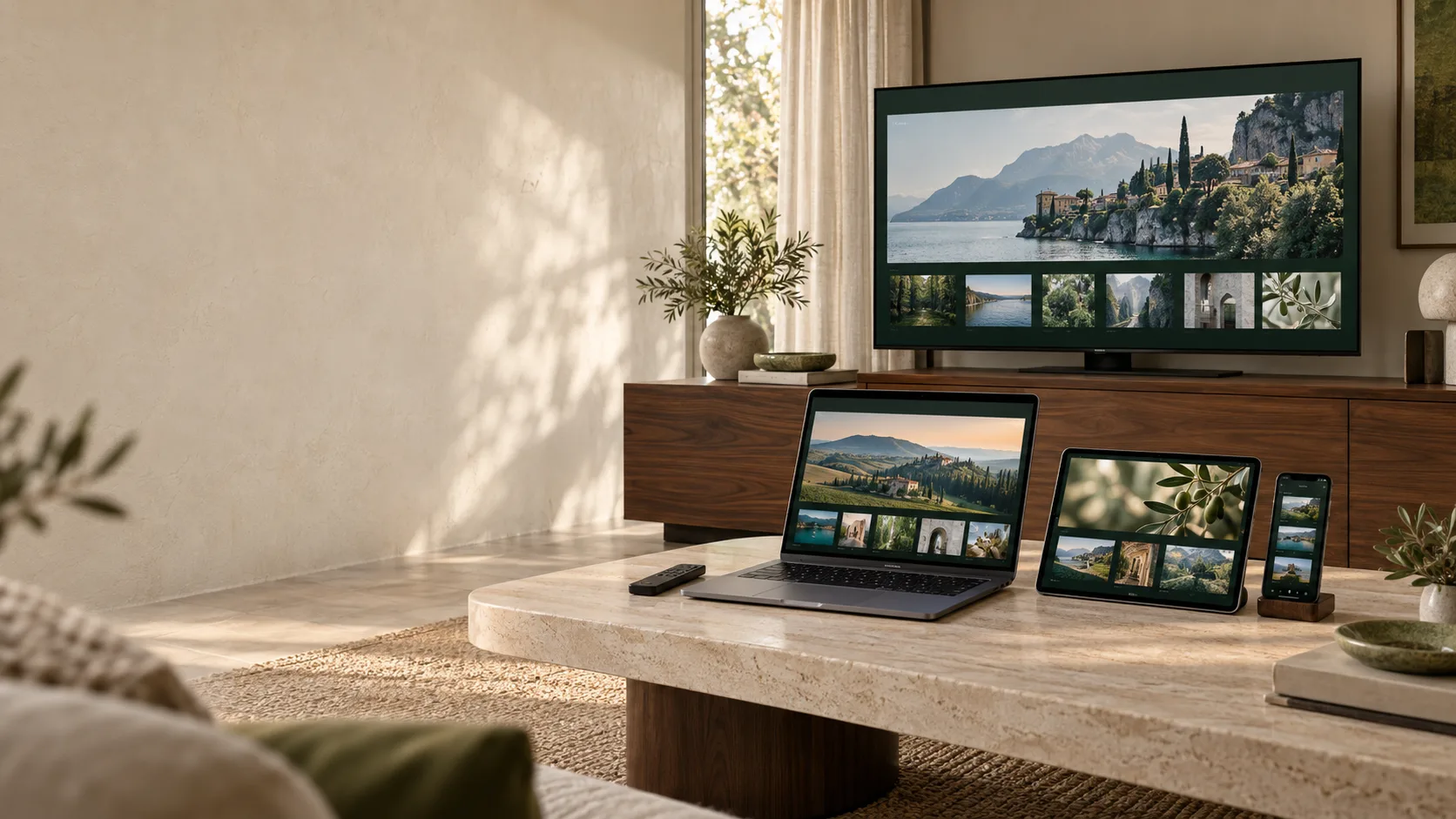
Compatibilità IPTV: Smart TV, laptop, tablet e smartphone in un salotto italiano

Devices, apps and setup

IPTV compatibility: your device,
the right app.

IPTV compatibility starts with the right app for your device. We help you navigate Smart TVs, smartphones and computers, with guidance to choose a player and set up your access.

  • Your device
  • The right app
  • Setup

01 / DEVICES AND SYSTEMS

IPTV compatibility:
start with your device.

Smart TV, phone or computer? Identify your device and its system: this is the first step in choosing the right app and preparing your setup.

  • Smart TV

    Samsung

    Tizen · Smart TV

    Start with your TV model and its year of manufacture.

    To check
    Modello e anno

  • Smart TV

    LG

    webOS · Smart TV

    Check the webOS version and the apps available on your TV.

    To check
    Versione webOS

  • TV e box

    Google TV

    Anche Android TV

    TV or box: identify the system and look for a player designed for remote-control navigation.

    To check
    Sistema e versione

  • Streaming device

    Amazon Fire TV

    Fire TV Stick and other models

    Check the model: Fire OS and Vega OS require different installation paths.

    To check
    Fire OS o Vega OS

  • Mobile

    Android

    Smartphone and tablet

    For a touch screen, start with an app suited to your mobile device.

    To check
    Android version

  • Mobile

    iPhone e iPad

    iOS · iPadOS

    Identify your device and check the player requirements before installing it.

    To check
    Versione iOS / iPadOS

  • Computer

    Windows

    PC and laptop

    Check the app requirements and the access method needed for setup.

    To check
    Player requirements

  • Computer

    macOS

    MacBook e desktop Mac

    Choose the player after checking your macOS version and your Mac requirements.

    To check
    Versione macOS

Same device, different apps. Player availability and operation depend on the model, system version and app requirements. This overview does not guarantee compatibility for every model.

02 / APPS AND INSTALLATION

IPTV apps:
choose the right player.

An IPTV app connects your device and your access. Start with the system you use, check the player and always distinguish setup from any app licence.

Samsung / LG01

SmartOne

Smart TV · Tizen / webOS

A player to consider for your Samsung or LG TV. Before proceeding, check the TV model and the availability of the app and service in Italy.

Setup
Follow the instructions and portal shown in the app.
App licence
Check the conditions and price before purchase.

Check availability in Italy before installation and activation.

Before installing SmartOne
  1. Identify the TV model, year and system. Check app availability in the TV store.
  2. Check service availability in Italy before setting up or paying for a licence.
  3. If the check is positive, follow the instructions for the installed version and test it before paid activation.

For the Italian context, consult the AGCOM decision on SmartOne. Il documento non sostituisce la verifica della situazione attuale.

Android TV / Google TV02

IBO Player Pro

TV and box · version to check

The player planned for our Android TV and Google TV path. Before downloading it, confirm the full name and publisher: apps with similar names exist.

Setup
MAC / Device Key, if provided by the selected version.
App licence
To be confirmed for the selected app and device.

Activation is included in the 12-month offer after checking the app and compatibility.

Prepara l’installazione
  1. Check the device model and system version.
  2. Confirm the app publisher and official link before installing it. Do not use an unverified Downloader code.
  3. If the app shows a MAC and Device Key, use them only in the portal indicated by the app or through the agreed support channel.

The download link, any Downloader code and specific steps will be added after checking the version.

Android TV / Google TV03

TiviMate

Remote-control interface

An alternative designed for Android TV and remote-control navigation. It supports M3U playlists and Xtream Codes access; it is not optimised for touch phones and tablets.

Setup
M3U URL or Xtream Codes access details.
App licence
Check Premium features and price in the app.

The TiviMate licence is not included in our 12-month activation offer.

How to get started with TiviMate
  1. Check device compatibility in the official TiviMate page, published by Armobsoft FZE.
  2. Install the app through the official channel available for your device.
  3. Prepare the M3U URL or Xtream Codes details supplied by your service and follow the steps to add the playlist.

Purchasing Premium features relates to the player; it does not include channels or content.

App, setup and subscription are separate. Before buying a licence, verify that the player works. Use only content for which you have access rights.

Explore IPTV guides →

03 / SETUP AND GUIDANCE

IPTV setup:
prepare your access.

Have you identified the player? The next step is to understand which details it requires. Xtream Codes, M3U links and app identifiers have different roles: use the method required by the player and your service.

Xtream CodesThree details, in the right fields

If the player and service support this method, prepare the server address, username and password received from the provider.

  • 01URL del server
  • 02Nome utente
  • 03Password

Select the Xtream Codes option in the app and enter each detail in its corresponding field. Keep any port and protocol provided; avoid adding spaces when copying.

Do not publish passwords or screenshots containing access details. This page never asks you to enter them.

Riferimento tecnico: dati Xtream e playlist M3U

Link M3UA playlist via a URL

An M3U link is an address that lets the player load a playlist. It is not a code to type into Downloader.

  1. Retrieve the full URL provided by your service.
  2. Enter it in the field for the player’s M3U playlist or management portal.
  3. Save and refresh the playlist by following the app instructions.
The link may contain credentials or a personal token. Do not share it in public comments or unverified online converters.

MAC / Device KeyIdentify the player in its portal

Some apps show a MAC or Device ID and a Device Key. These identifiers are used to access management for that specific app; they do not automatically replace subscription details.

  1. Read the identifiers in the installed app rather than looking for them in router settings.
  2. Use only the portal indicated by the app or the agreed support channel.
  3. Distinguish adding the playlist from any payment for the player licence.

A portal that identifies the app by MAC may then require an M3U playlist or other access details. It is not necessarily an alternative to Xtream Codes.

Example of a portal with MAC and Device Key — use this reference only if it matches your app.

From M3U to Xtream: it is not a universal conversion.

Some URLs already include a server, username and password; others use files or tokens without these details. Retrieving them does not guarantee that the service supports Xtream Codes. If in doubt, ask the provider for the correct access format.

For specific steps, follow your app instructions and consult the available guides.

Vai alle guide IPTV →

04 / FREQUENTLY ASKED QUESTIONS

IPTV compatibility:
let’s make it clear.

Apps, devices and activation: the answers to know before setting up your access.

Il punto di partenza

A compatible device, a suitable player and access to the service are three different things. Checking them separately helps you understand what to install and activate.

Want to learn more?
Esplora le guide IPTV

Does IPTV work on any connected device?

No: an Internet connection alone does not guarantee IPTV compatibility. Smart TVs, smartphones, tablets and computers need a player suited to the operating system and service access format. Before installing it, check the model, system version and app requirements: a TV app is not necessarily suitable for iPhone, Android mobile, Windows or macOS.

Find your device and its system

Which IPTV app should I choose for a Samsung or LG Smart TV?

Start with the TV model and the store available on the device. For Samsung and LG, SmartOne is one option considered on this page, not a guarantee for every TV. Check model support, system version and actual availability in Italy before buying a licence. Do not choose based on brand alone.

View apps and availability notices

Is TiviMate suitable for Google TV and Android TV?

TiviMate is designed for Android TV and remote-control use. On Google TV, which is based on Android TV OS, check availability in the device store and the current version requirements. It is not optimised for touch smartphones or tablets. Premium features apply to the player; they do not include channels, films or an IPTV subscription.

Fonti: TiviMate su Google Play · Google TV e Android TV.

Can I install any Android app on Amazon Fire TV?

No: you need to check the Fire TV model and operating system. Amazon distinguishes between Fire OS, based on Android, and Vega OS. An Android app or APK file is therefore not automatically compatible with every Fire TV device. Check the store and official instructions for your model first.

Fonte: piattaforme Fire TV, documentazione Amazon.

Does the app licence also include the IPTV subscription?

No: a player licence is not the same as access to content. For example, TiviMate is a player and does not provide TV channels. The app manages playback; service access requires a playlist or valid credentials provided separately. Before paying, check what each purchase includes and use only content you are authorised to access.

Fonte: descrizione ufficiale di TiviMate.

When is app activation offered with IPTV Italia?

With IPTV Italia, from a 12-month subscription, we can offer activation of an eligible app. Eligible options are IBO Player Pro, IBO Player, Vu Player, HotPlayer and SmartOne, after checking version, compatibility and availability. TiviMate is not part of the offer.

Before purchase, have the chosen app, licence duration, covered devices and any transfer conditions confirmed. Do not assume every app is included or that activation is unlimited.

Which details are needed: Xtream Codes, M3U or MAC and Device Key?

It depends on the player and the planned setup method. Xtream access normally requires a server URL, username and password; M3U uses a playlist link. Some players display a MAC and Device Key to identify the app in its portal: these details do not necessarily replace the playlist or service credentials.

Use only the portal indicated by the exact app. Do not publish passwords, personal playlist URLs or Device Key screenshots.

Compare setup methods

Can I convert any M3U link into Xtream Codes?

No: there is no universal conversion from M3U to Xtream Codes. Some URLs already contain a server address, username and password; others use tokens or different structures. Extracting parameters does not prove that the service supports Xtream access. Ask the provider for the correct credentials without pasting your personal link into unknown converters.

Riferimento sui formati: documentazione SmartOne sulle playlist.

If the catalogue is slow or the video freezes, is the app incompatible?

Not necessarily: catalogue loading and video playback are separate issues. Note when the slowdown appears, update the player from the official store and check the connection. Also verify access validity, simultaneous connection limits and service availability. These checks help isolate the problem but do not identify the cause on their own.

When asking for help, prepare the model, app version and error message without publicly sending credentials.

What should I do if I cannot find the app or a verified Downloader code?

Check the exact app name, developer and device model before downloading. An app missing from the store may be due to player availability or requirements; it does not by itself prove an issue with the subscription. A Downloader code does not certify the file’s origin or compatibility. Use an official source and specific instructions; we do not publish unverified codes here.

A clear choice before you start.
Check the device, app and activation conditions. Then move on to setup.

Review IPTV apps
Support in English Message us on WhatsApp